Help and guides
Everything you need to get started, with screenshots from the extension itself. Settings live on your own computer, so there is nothing to sign up for and nothing to install beyond the extension.
Quick start
Three minutes and you are set up.
- Install the extension from the Chrome Web Store and confirm the installation.
- Click the extension icon in the toolbar. If you cannot see it, click the puzzle icon and pin it.
- In the popup, turn on the categories you want blocked. Changes take effect immediately.
- Click "Advanced settings" to add your own sites, set hours and choose a password.
Tip: after a change, refresh the open tab. There is no need to restart the browser.
Block a specific site
Your own list works alongside the preset categories, and takes any domain.
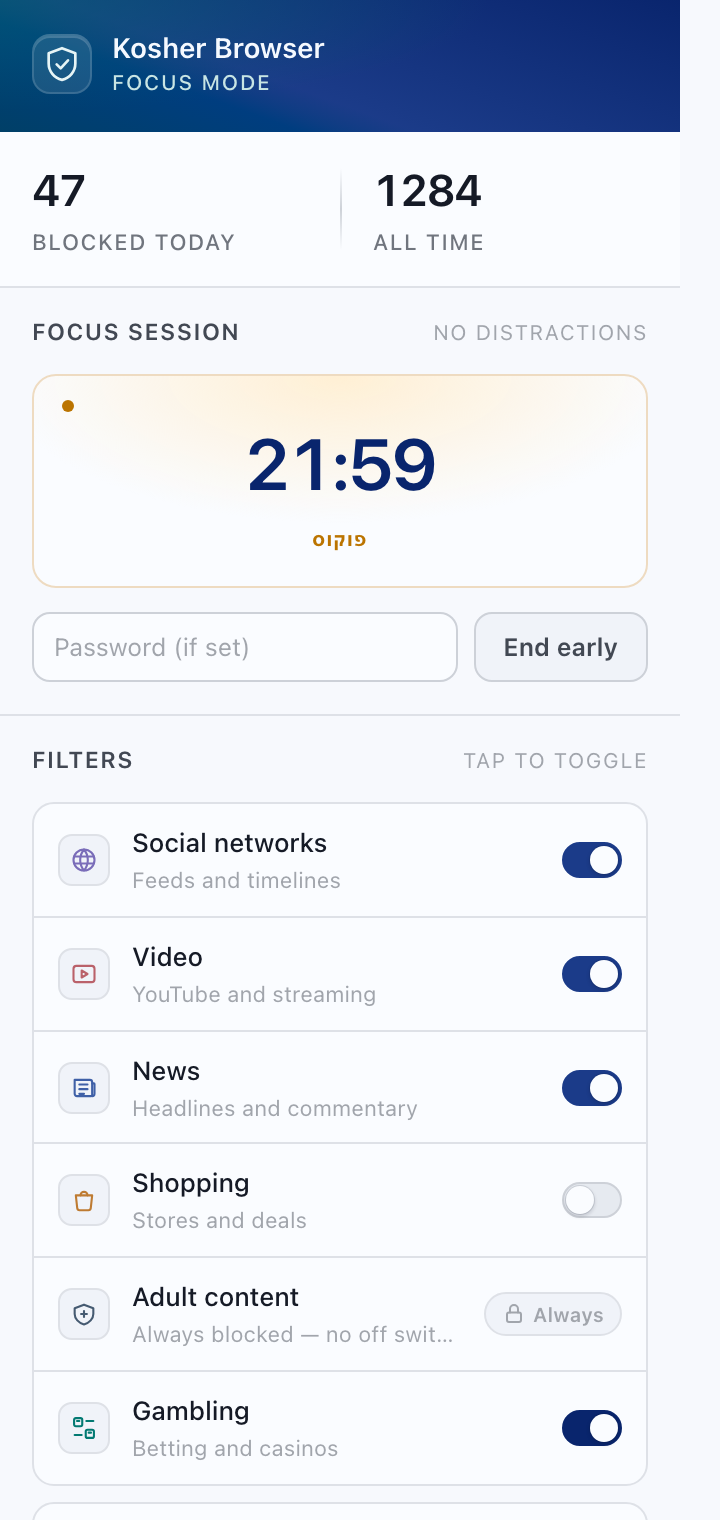
- Open the settings and go to the Blocklist tab.
- Type the base domain, for example example.com, and click "Add".
- It appears as a chip in the list. Click the × to remove it.
Note: the base domain is enough. All of its subdomains are blocked automatically, so example.com also covers news.example.com.
Block whole categories
Adult content is blocked from the moment you install and has no switch at all. The remaining five categories — social, video, news, shopping and gambling — are yours to turn on and off.
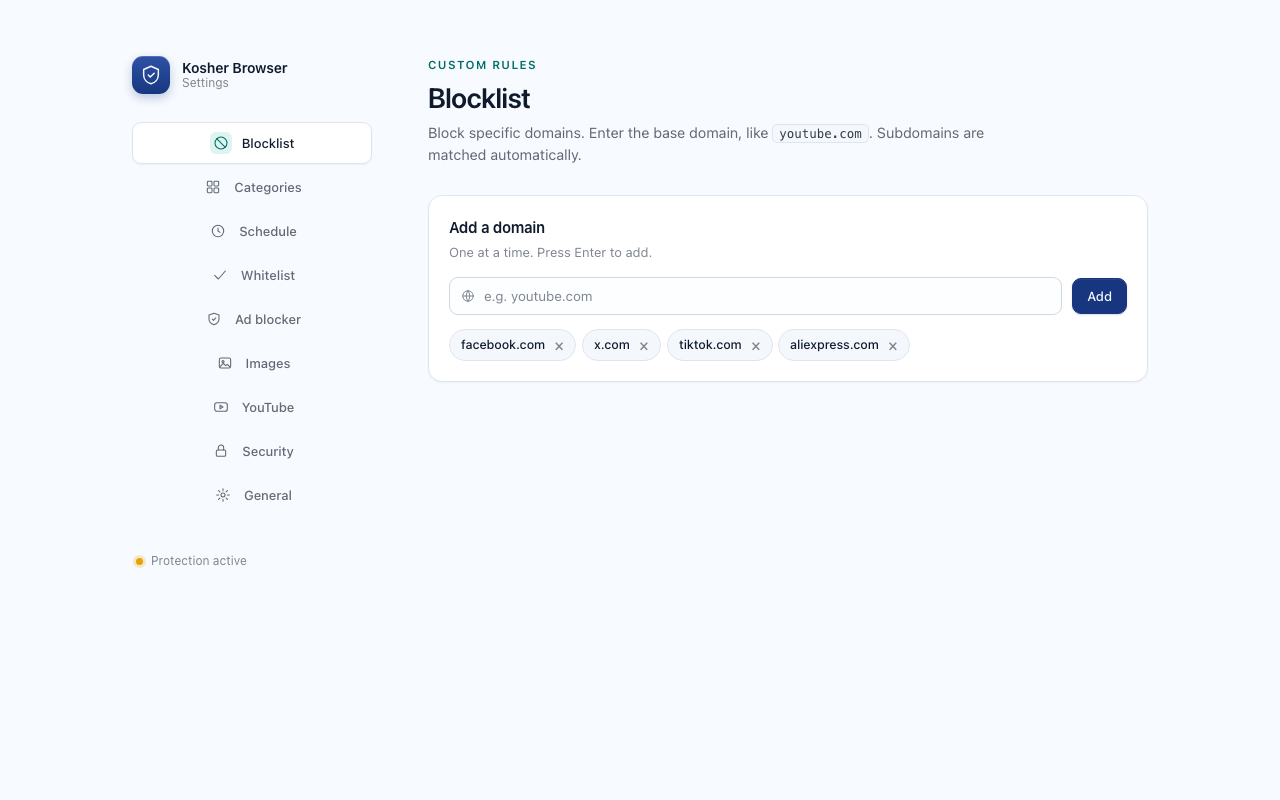
- In the settings, go to the Categories tab.
- Turn on the switch next to each category you want blocked.
- Each card shows a few example domains from the list, then how many more it contains.
Adult content: the first card on the tab is locked. The list holds 30,000 sites and is always enforced — while blocking is paused, and even if such a site is added to the allow list by mistake. The site names are deliberately never shown anywhere in the extension.
If a site is missing: the lists are a starting point. Add anything that is missing in the "Blocklist" tab and it is blocked the same way.
Hide images
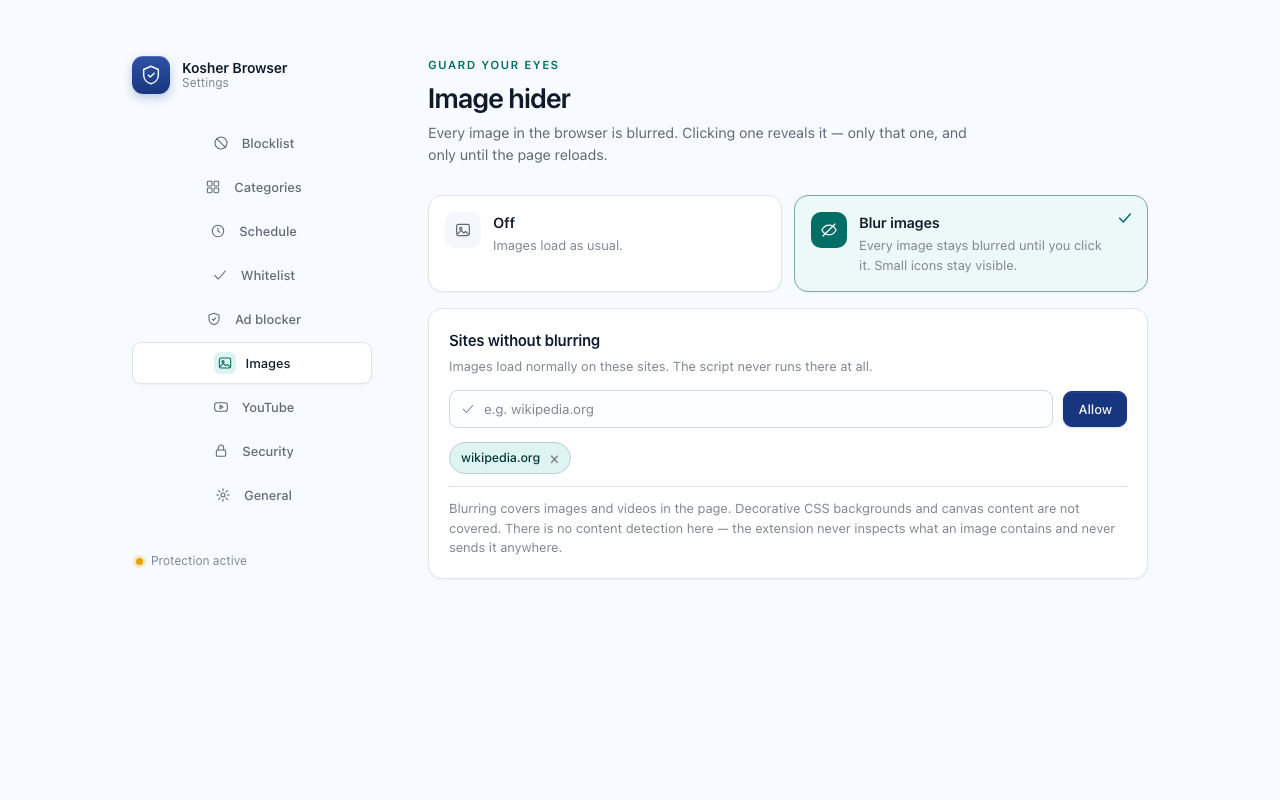
An optional mode that blurs every image and video on every site until you click it.
- In the settings, go to the Images tab and choose Blur images.
- Blurring applies immediately, everywhere, before an image has a chance to paint.
- Clicking an image reveals it — only that one, and only until the page reloads.
- Sites where you need the images can go in the exception list at the bottom of the tab.
Icons stay visible: anything under 64 pixels — logos, avatars, navigation glyphs — is left alone, otherwise sites become unusable.
No content detection: the extension never inspects what an image contains and never sends it anywhere. It blurs everything and leaves the decision to you.
Set blocking hours
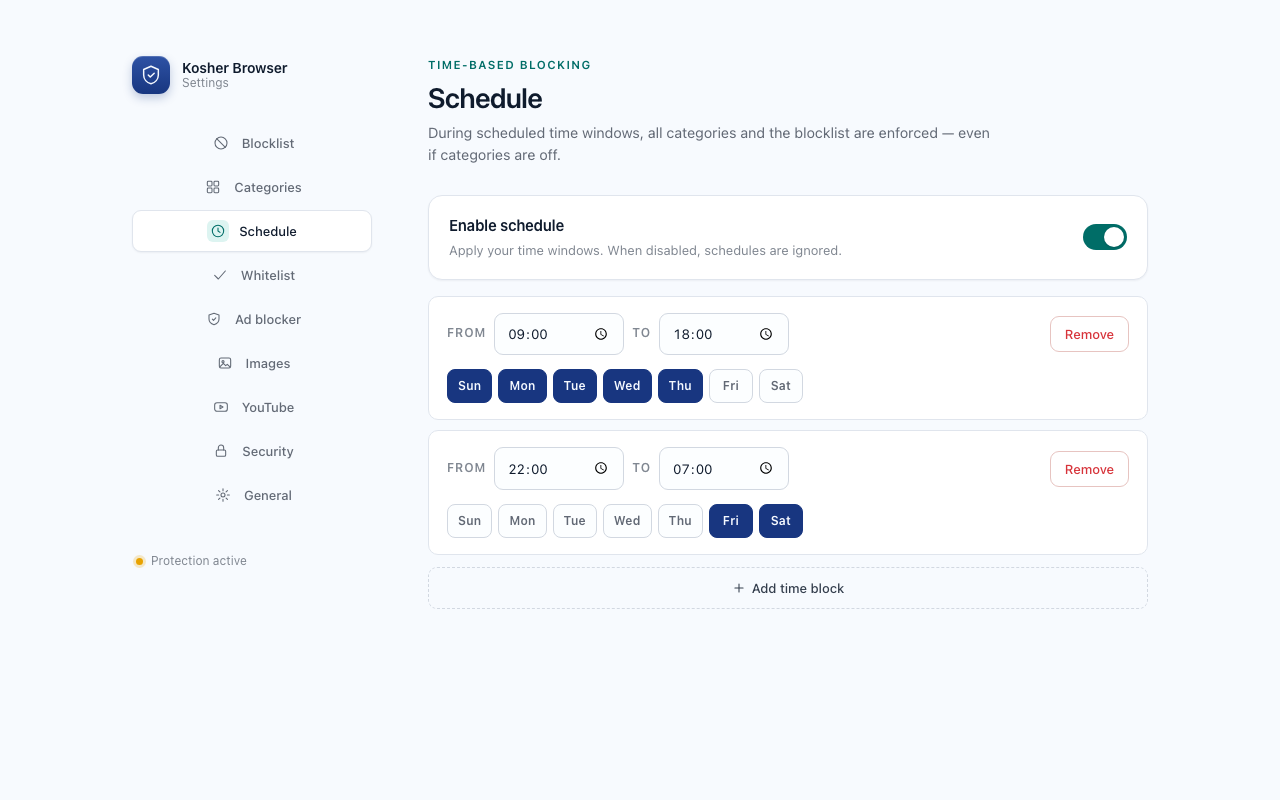
Inside a window you define, everything is enforced, even if categories are off the rest of the day.
- In the settings, go to the Schedule tab and turn on the top switch.
- Click "Add window", pick the days and a start and end time.
- Add as many windows as you like: one for work hours, one for evenings, one for Shabbat.
Windows that cross midnight are supported: an end time earlier than the start, such as 22:00 to 07:00, continues into the next day.
Focus timer
For blocking everything distracting temporarily, without changing your permanent settings.
- Open the popup from the toolbar.
- Pick a duration: 15, 25, 45, 60 or 120 minutes, or type your own.
- During the session all distracting categories and your own list are blocked, and the countdown shows in the popup.
The countdown survives closing the browser. If you set a password, ending a session early will ask for it.
YouTube for children: only channels you approve
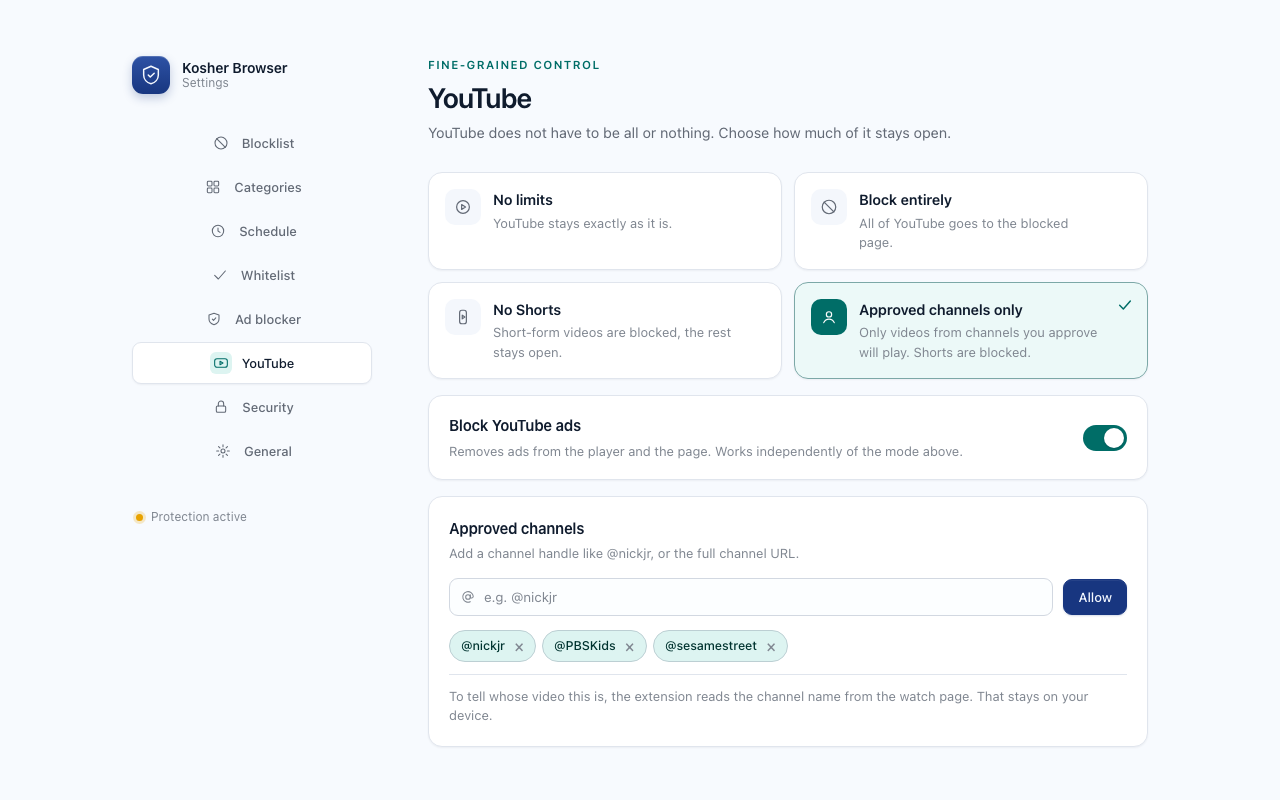
You can leave YouTube open and block only Shorts, or allow specific channels and nothing else.
- In the settings, go to the YouTube tab.
- Pick a mode: no limits, block entirely, no Shorts, or approved channels only.
- In "approved channels only", add channels by handle, such as @nickjr, or paste the full channel URL.
- You can also turn on YouTube ad blocking, in any of the modes.
Finding a channel handle: open the channel page on YouTube and copy what follows the @ in the address. The full URL works too.
Password and strict mode
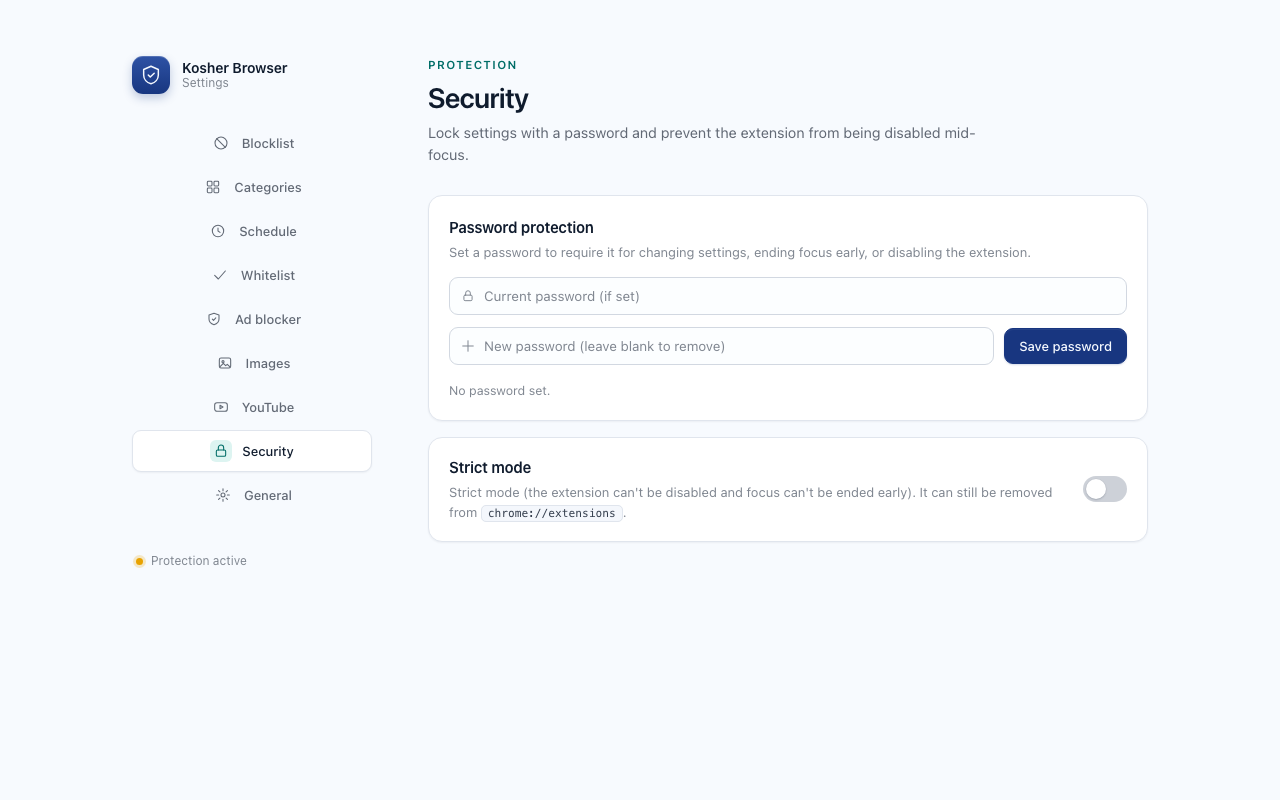
What turns the decision into something you cannot undo in a weak moment.
- In the settings, go to the Security tab and set a password.
- From then on, every settings change and every attempt to switch blocking off asks for it.
- To lock the off switch itself, turn on strict mode.
Before turning strict mode on: it cannot be switched off, and neither can the extension. The only way out is to uninstall and reinstall, which erases every setting.
What happens when a site is blocked
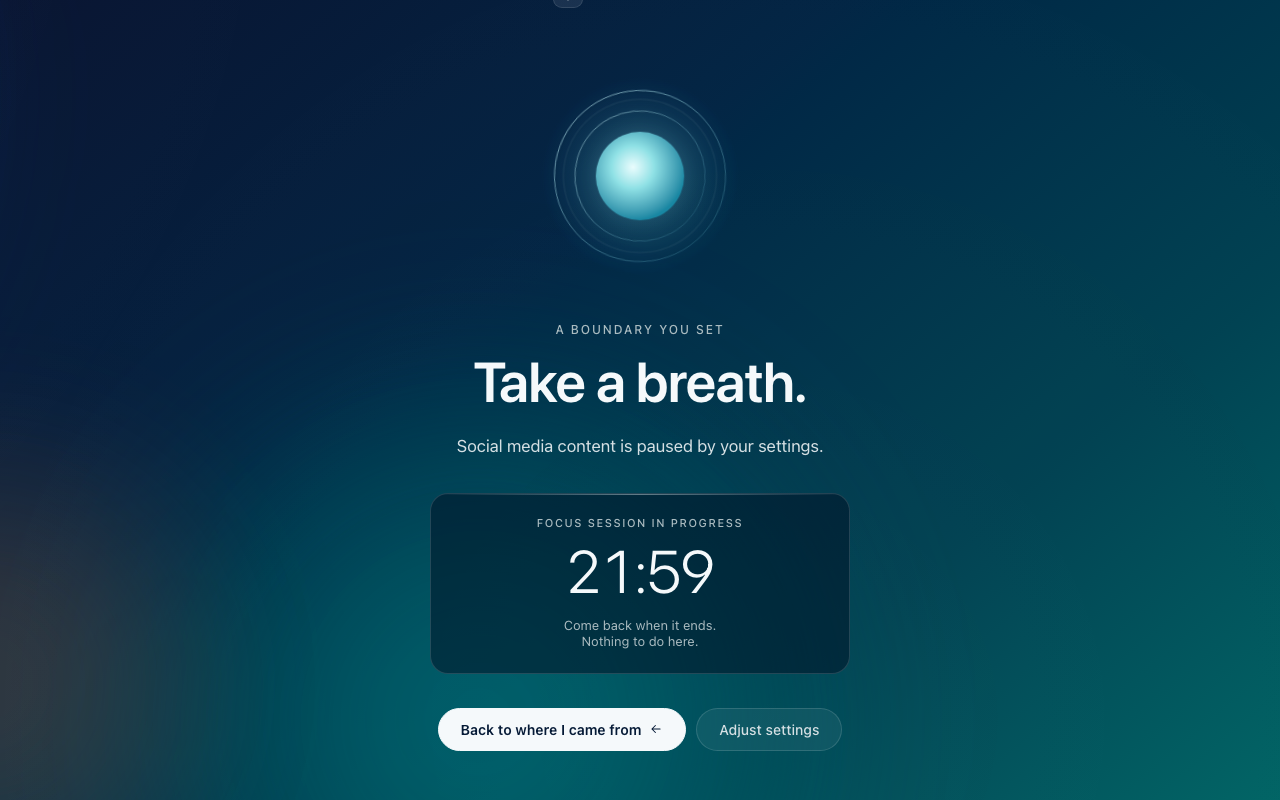
Instead of a browser error you get a quiet page that explains why, without lecturing.
- The page names what blocked it: a category, your own list, a schedule or a focus session.
- If a focus session is running, the remaining time is shown.
- You can go back, or open the settings if the rule itself needs changing.
Blocked by mistake? Add the site to the "Whitelist" tab, or turn off the category that caught it.
Frequently asked questions
Does blocking work in Incognito?
Not by default. Chrome disables extensions in Incognito windows, so blocking will not apply there until you allow it explicitly.
Go to chrome://extensions, click "Details" on Kosher Browser, and turn on "Allow in Incognito". This matters if you installed it for filtering rather than for focus.
I forgot my password. What now?
There is no password recovery, by design: only a SHA-256 hash is stored on your machine, and there is no server that could reset it.
The only route is to remove the extension from chrome://extensions and install it again. Removal erases every setting, including your lists and the password.
Can adult-content blocking be turned off?
No, by design. Unlike the other categories this list is not a setting but a fixed part of the extension: it loads before the rest of the blocking machinery, keeps working while blocking is paused, and the allow list cannot override it.
The only way to remove it is to uninstall the extension from chrome://extensions. If the extension is installed on someone else's machine, set a password and strict mode so that even uninstalling is not immediate.
A site is blocked by mistake. How do I open it?
Two ways: add it to the "Whitelist" tab, or turn off the category that caught it.
If you set a password, both changes ask for it. In strict mode you can still edit lists; you just cannot switch blocking off.
Does it slow down browsing?
Not noticeably. Blocking uses Chrome's declarativeNetRequest: the rules are handed to the browser and it enforces them itself. No code runs on every page to inspect it.
There are two small exceptions, both on YouTube only and both off by default: "approved channels only" and YouTube ad blocking.
Where does my data go?
Nowhere. There is no account, no server and no analytics. Settings live in chrome.storage on your machine.
The only two features that read anything from a page are on YouTube: reading the channel name to compare it with your list, and removing the ad slots from the player data. Both run on the device, store nothing and send nothing.
Chrome warns that the extension is "not trusted". Is that a problem?
That is an Enhanced Safe Browsing notice, shown for extensions whose developer has not yet built up standing in the store. It does not mean anything was found in the code.
You can continue the installation. Google's own documentation says new developers generally reach "trusted" status after several months of policy compliance.
Does it work on a phone?
No. Chrome on Android and iOS does not support extensions at all, so Kosher Browser works on desktop only.
Other desktop browsers are not covered either: the extension is built for Chrome and published in its store.
How do I uninstall it?
Right-click the extension icon and choose "Remove from Chrome", or go to chrome://extensions and click "Remove".
Removal erases all settings from your machine. Nothing is left behind.
Does it block other apps too?
No. A Chrome extension can only act inside Chrome. Other applications, other browsers and other devices are unaffected.
For device-wide or network-wide filtering you need something at the operating-system or router level instead.
Join the support group
Prefer email? dayanimo@gmail.com